
Understanding Secure Boot Certificate Updates: A Step-by-Step Guide
Updated: Feb 22
Secure Boot certificates are being updated ahead of their 2026 expiration to maintain trust at the firmware level. This post explains why the change is necessary, what it means for boot-level security, and how administrators can successfully deploy and verify the new certificates—particularly across large environments.
Contents:
Creating Scripts and Automation For Large Environments Getting Insights Across the Board with Log Analytics

What Is Secure Boot?
Secure Boot is a security feature built into the firmware of modern day computers, and checks that any software that is loaded as part of the boot process is digitally signed and trusted. The idea is to prevent malware or malicious code from running before the operating system has fully started, when traditional security tools like antivirus software are not yet active. By ensuring only known and approved components are allowed to load, Secure Boot helps protect the system from low-level attacks that can be difficult to detect or remove.
By allowing only known and approved boot components—such as firmware drivers, bootloaders, and early operating system code to run, Secure Boot helps protect systems from low-level attacks like bootkits and rootkits. These types of threats can be especially difficult to detect or remove once they are established, which makes protecting the boot process itself an important layer of defense.
What is Changing in June 2026?
Secure Boot relies on digital certificates stored in system firmware to establish trust, and the certificates widely used today are set to expire in June 2026 (more precisely June 27 2026). These certificates were originally issued in 2011, and like all cryptographic certificates, they have a defined lifetime. Once they expire, Secure Boot can no longer rely on them to validate new or updated boot components.
To address this, Microsoft, working together with hardware manufacturers such as HP, Dell, and Lenovo have been rolling out new Secure Boot certificates for some time. While this change may feel imminent, the replacement certificates were actually issued back in 2023. As a result, many systems manufactured around 2023 or later already include these newer certificates out of the box.
For older devices, Microsoft began distributing the updated certificates through Windows Update starting in 2025. As long as systems are kept up to date and firmware updates from the device manufacturer are applied when required, most users should not notice any disruption as the 2026 deadline approaches. Below are vendor links that tells you the minimum BIOS/firmware version that contains the updated Secure Boot certificates.
It should be noted that even if the certificate expires, your PC would still boot and work as normal. However the computer would be unable to update and apply updated secure boot mitigations/protections, which would increase exposure to boot-level threats.
Consumers and Home Users
For personal owned devices the recommended approach is to make sure you have installed all the latest updates from Microsoft by checking Windows Update. Also make sure that you have the latest firmware/UEFI/BIOS update that is applicable to your device. These can be found on the support/download page for your PC manufacturer. If you have a custom built PC check the vendor of your motherboard.
Organizations and Enterprises
Making sure your private PC at home is up to date is one thing, doing the same for hundreds if not thousands of devices in an organization is something completely different. The best place to start with Secure Boot updates for any organization is the official guide from Microsoft.
There are a lot of different approaches to installing firmware updates, but in my personal opinion the best way is to leverage utilities from the OEM's and use device management software to configure them. This provides a simple way of making sure devices stay up to date, by scheduling the installation of drives and firmware and controlling what type of updates i want (lets face it not all software from the OEMs is useful). We wont cover automatic updates using OEM tools in this post, that something for a future post.
Intune - Error 65000
Microsoft recommends four different ways to deploy Secure Boot Certificate Updates: Intune, Registry, Windows Configuration System (WinCS) and Group Policy.
Since all devices in our organization are Intune managed, using Intune would have been the perfect way to go as the Settings Catalog now includes 3 settings to control Secure Boot certificate updates.
The only problem with this approach is that, Secure Boot configuration settings deployed through Microsoft Intune are currently blocked/broken on Pro editions of Windows 10 and Windows 11 resulting in a error code 65000. This indicates that the feature is unavailable due to licensing. This is a known issue and Microsoft will probably address it soon. The next best thing is registry keys, so that's what we will be focusing on from here on.

Working with the Registry - Updating Manually
First things first, lets run the update manually on a single computer so that we understand the process. Make sure you are on the latest version of Windows 11 - 25H2 before you begin, the registry keys are not present in older versions (24H2 does work, but its recommended to be on the latest release).
All of the secure boot registry settings are located in the following two-paths:
HKLM\SYSTEM\CurrentControlSet\Control\SecureBoot
HKLM\SYSTEM\CurrentControlSet\Control\SecureBoot\Servicing
The first key to check is UEFICA2023Status key. This indicates the current state of the Secure Boot certificate update and can have the following values: Not Started, InProgress and Updated.
If the status is NotStarted we can trigger the update manually on a single device by preforming the following steps in an elevated PowerShell window.
Set the AvailableUpdates key to 0x5944. This triggers the certificate and boot manager to update on the device. reg add HKEY_LOCAL_MACHINE\SYSTEM\CurrentControlSet\Control\Secureboot /v AvailableUpdates /t REG_DWORD /d 0x5944 /f
Run the Secure Boot Update scheduled task that handles the deployment. This scheduled task is set to run on startup or every 12 hours. Start-ScheduledTask -TaskName "\Microsoft\Windows\PI\Secure-Boot-Update"
The AvailableUpdate registry key should now change value to 0x4100 as a result of running the scheduled task.
Reboot the computer
The scheduled task should run again at startup and after a second reboot the AvailableUpdates key should change to 0x4000 indicating success.
In the screenshots below the device was shipped with updated Secure Boot certificates, hence the UEFICA2023Status is Updated, but the AvailableUpdates is still 0.

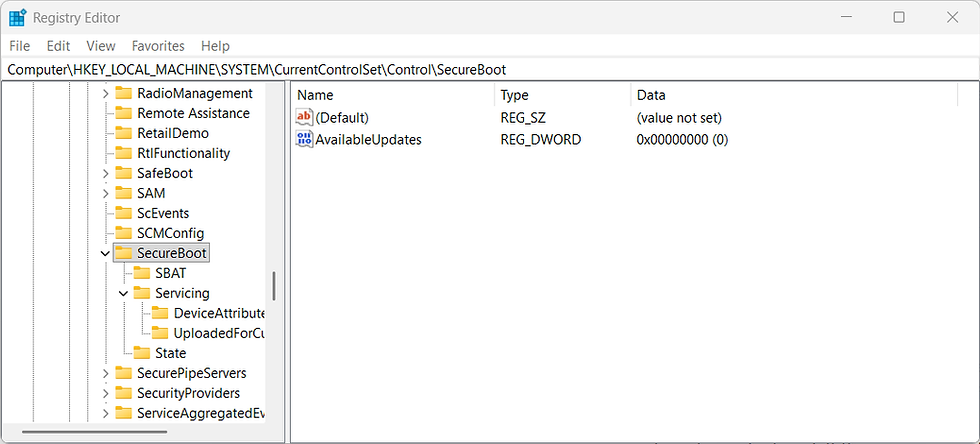
The steps above also trigger specific events that you can use to follow the update process. Il mention some of the most important ones - for reference here are all the event ids that are used in the Secure Boot Certificate Update. Obviously the one to look out for is the 1808 event id that tells you that the device is fully updated and the Windows Boot loader has been updated.
Event ID | Description |
1034 | Secure Boot Dbx update applied successfully |
1036 | Secure Boot Db update applied successfully |
1043 | Secure Boot KEK update applied successfully |
1044 | Secure Boot DB update to install Microsoft Option ROM UEFI CA 2023 certificate applied successfully |
1045 | Secure Boot DB update to install Microsoft UEFI CA 2023 certificate applied successfull |
1799 | Boot Manager signed with Windows UEFI CA 2023 was installed successfully |
1801 | Updated Secure Boot certificates are available on this device but have not yet been applied to the firmware |
1808 | This device has updated Secure Boot CA/keys |
Creating Scripts and Automation For Large Environments
The next section and for the remainder of the post will focus on how to trigger the Secure Boot Certificate update using registry keys in large environments, remmber that this is just one approach of many.
First we need a script that will check if the update process has been started, if not we need to set the required registry key and then run the update task. That would kick off the update process. Of course a few reboots are required and also some systems might also need a BIOS/Firmware update to fully complete the update. The goal here is simply to start the update process.
The script below is intended to be deployed using Microsoft Intune:
# Requires admin
if (-not ([Security.Principal.WindowsPrincipal] `
    [Security.Principal.WindowsIdentity]::GetCurrent()
).IsInRole([Security.Principal.WindowsBuiltInRole]::Administrator)) {
    Write-Error 'This script must be run as Administrator.'
    return
}

$LogPath = Join-Path $env:ProgramData 'Intune\Log'
$LogName = Join-Path $LogPath 'EnableSecureBootCertUpdates.log'

if (-not (Test-Path $LogPath)) {
    New-Item -Path $LogPath -ItemType Directory -Force | Out-Null
}

Start-Transcript -Path $LogName -Force

try {
    $availableUpdates = Get-ItemProperty -Path 'HKLM:\SYSTEM\CurrentControlSet\Control\SecureBoot' -Name 'AvailableUpdates' -ErrorAction Stop
    $servicingStatus  = Get-ItemProperty -Path 'HKLM:\SYSTEM\CurrentControlSet\Control\SecureBoot\Servicing' -Name 'UEFICA2023Status' -ErrorAction Stop

    $didChange = $false

    if ($servicingStatus.UEFICA2023Status -eq 'NotStarted') {
        Write-Output 'Not Started'

        if ($availableUpdates.AvailableUpdates -eq 0) {
            New-ItemProperty -Path 'HKLM:\SYSTEM\CurrentControlSet\Control\SecureBoot' -Name 'AvailableUpdates' -PropertyType DWord -Value 0x5944 -Force | Out-Null

            Write-Output 'Secure Boot Certificate Update Enabled'
            $didChange = $true
        }
        else {
            Write-Output "AvailableUpdates already set to: $($availableUpdates.AvailableUpdates)"
        }

        if ($didChange) {
            Start-Sleep -Seconds 10

            $TaskPath = '\Microsoft\Windows\PI\'
            $TaskName = 'Secure-Boot-Update'

            try {
                Start-ScheduledTask -TaskPath $TaskPath -TaskName $TaskName -ErrorAction Stop
                Write-Output "Started scheduled task: $TaskPath$TaskName"
            }
            catch {
                Write-Error "Could not start scheduled task $TaskPath$TaskName : $_"
            }
        }
        else {
            Write-Output 'No change made; not starting scheduled task.'
        }
    }
    elseif ($servicingStatus.UEFICA2023Status -eq 'InProgress') {
        Write-Output 'SecureBoot Update: In Progress'
    }
    elseif ($servicingStatus.UEFICA2023Status -eq 'Updated') {
        Write-Output 'SecureBoot Update: Updated. No further action required.'
    }
    else {
        Write-Error "SecureBoot Update: Unknown Status: $($servicingStatus.UEFICA2023Status)"
    }
}
catch {
    Write-Error "Failed to read Secure Boot registry keys or process update: $_"
}
finally {
    try { Stop-Transcript | Out-Null } catch {}
}
Getting Insights Across the Board with Log Analytics
Now that our devices have started the update process, we need someway to get the status of all the devices in our environment, and also let us query that dataset, enter Log Analytics. Log Analytics is used to collect, analyze, and query data from cloud and on-premises resources to monitor performance, detect issues, and gain operational insights. In the Azure Portal, search for Log Analytics and create a new Log Analytics Workspace. No specific configuration is required. Log Analytics has a 30 day retention period by default, having a higher retention could be useful and can be increased

One we have created out Log Analytics Workspace we need two extra pieces of information: the workspace ID and the Shared Key. These will be put into a script so the clients can send information to the Log Analytics workspace. Use Powershell with the Az (Azure) module to retrieve the required information:
Find the WorkspaceID:
(Get-AzOperationalInsightsWorkspace -ResourceGroupName $resourceGroupName -Name $workspaceName).CustomerIdand then get the SharedKey:
(Get-AzOperationalInsightsWorkspaceSharedKey -ResourceGroupName $resourceGroupName -Name $workspaceName).PrimarySharedKeyNext we need to create a script that uploads Secure Boot information to our Log Analytics workspace. Insert the Workspace ID and the SharedKey into the appropriate variables. The LogType variable is the name of the custom table that will be used to store the information, call it anything you like (in my case I just called it SecureBootUpdates). Run the script and if successful you should see a new table created in Log Analytics, it can take 5-10 minutes for the table to be visible in Log Analytics on the first run. Once the table is created data is displayed quickly.

Now that we have a script that sends information from the clients to the Log Analytics Workspace, we need to make sure it runs on an interval. To do this I wrapped the script as a Win32 application in Intune, along with an install script that makes sure the script is run every time the device is booted or every 12 hours (same as Microsoft's update task) by creating a Scheduled Task. This script along with the Get-SecureBootInfo script is included below.
I am not a PowerShell expert, so i am sure there are lots of improvements that could be made to the scripts below. Modify to fit your needs.
Here is the Get-SecureBootInfo script:
# Requires admin
if (-not ([Security.Principal.WindowsPrincipal] `
    [Security.Principal.WindowsIdentity]::GetCurrent()
).IsInRole([Security.Principal.WindowsBuiltInRole]::Administrator)) {
    Write-Error 'This script must be run as Administrator.'
    return
}

$LogPath = Join-Path $env:ProgramData 'NC\Log'
$LogName = Join-Path $LogPath 'Get-SecureBootInfo.log'

if (-not (Test-Path $LogPath)) {
    New-Item -Path $LogPath -ItemType Directory -Force | Out-Null
}

Start-Transcript -Path $LogName -Force

$WorkspaceId = "xxxxxxxxxxxxxxxxxxxxx"
$SharedKey   = "xxxxxxxxxxxxxxxxxxxxx"
$LogType     = "xxxxxxxxxxxxxxxxxxxxx"

function Build-Signature {
    param(
        [string]$WorkspaceId,
        [string]$SharedKey,
        [string]$Date,
        [int]$ContentLength,
        [string]$Method,
        [string]$ContentType,
        [string]$Resource
    )

    $xHeaders     = "x-ms-date:$Date"
    $stringToSign = "$Method`n$ContentLength`n$ContentType`n$xHeaders`n$Resource"

    $bytesToSign  = [Text.Encoding]::UTF8.GetBytes($stringToSign)
    $keyBytes     = [Convert]::FromBase64String($SharedKey)
    $hmacSha256   = New-Object System.Security.Cryptography.HMACSHA256
    $hmacSha256.Key = $keyBytes
    $hash         = $hmacSha256.ComputeHash($bytesToSign)
    $signature    = [Convert]::ToBase64String($hash)

    $authHeader = "SharedKey {0}:{1}" -f $WorkspaceId, $signature
    return $authHeader
}

function Send-ToLogAnalytics {
    param(
        [string]$WorkspaceId,
        [string]$SharedKey,
        [string]$LogType,
        [object]$BodyObject
    )

    $jsonBody = $BodyObject | ConvertTo-Json -Depth 5

    $contentType    = "application/json"
    $resource       = "/api/logs"
    $date           = (Get-Date).ToUniversalTime().ToString("r")
    $contentLength  = [Text.Encoding]::UTF8.GetByteCount($jsonBody)
    $method         = "POST"
    $signature      = Build-Signature -WorkspaceId $WorkspaceId -SharedKey $SharedKey `
                                      -Date $date -ContentLength $contentLength `
                                      -Method $method -ContentType $contentType `
                                      -Resource $resource

    $uri = "https://$WorkspaceId.ods.opinsights.azure.com/api/logs?api-version=2016-04-01"

    $headers = @{
        "Authorization"       = $signature
        "Content-Type"        = $contentType
        "Log-Type"            = $LogType
        "x-ms-date"           = $date
        "time-generated-field" = ""
    }

    Invoke-RestMethod -Method Post -Uri $uri -Headers $headers -Body $jsonBody
}

function Find-SecureBootEvents {

$result = [PSCustomObject]@{
    Status  = "No Events Found"
    EventId = 0
}

$secureBootEventIds = @(1032,1033,1034,1036,1037,1043,1044,1045,1795,1796,1797,1798,1799,1801,1808)
$timerange = (Get-Date).AddMonths(-1)

$events = Get-WinEvent -FilterHashtable @{
    LogName      = 'System'
    ProviderName = 'Microsoft-Windows-TPM-WMI'
    ID           = $secureBootEventIds
    StartTime    = $timerange
} -MaxEvents 100 -ErrorAction SilentlyContinue

if (-not $events -or $events.Count -eq 0) {
    $result.Status = "No Events Found"
    $result.EventId = 0
}
elseif ($events.Id -contains 1808) {
    $result.Status  = "Certificates and Firmware Updated. Bootloader has been reinstalled"
    $result.EventId = 1808
}
elseif ($events.Id -contains 1801) {
    $result.Status  = "Firmware Update Pending"
    $result.EventId = 1801
}
elseif ($events.Id -contains 1796) {
    $result.Status  = "Unexpected Error"
    $result.EventId = 1796
}
elseif ($events.Id -contains 1795) {
    $result.Status  = "Firmware Error"
    $result.EventId = 1795
}
elseif ($events.Id -contains 1033) {
    $result.Status  = "Vulnerable Boot Loader Found"
    $result.EventId = 1033
}
elseif ($events.Id -contains 1032) {
    $result.Status  = "BitLocker Recovery - Intervention Required"
    $result.EventId = 1032
}
else {
    $result.EventId = ($events | Sort-Object TimeCreated -Descending | Select-Object -First 1 -ExpandProperty Id)
    $result.Status = "Other - $($result.EventId) - MostRecent Event"
}
return $result

}

################ PAY LOAD STARTS HERE ################

$availableUpdates = Get-ItemProperty -Path 'HKLM:\SYSTEM\CurrentControlSet\Control\SecureBoot' -Name 'AvailableUpdates' -ErrorAction SilentlyContinue
$servicingStatus  = Get-ItemProperty -Path 'HKLM:\SYSTEM\CurrentControlSet\Control\SecureBoot\Servicing' -Name 'UEFICA2023Status' -ErrorAction SilentlyContinue
$windowsUEFICA2023Capable  = Get-ItemProperty -Path 'HKLM:\SYSTEM\CurrentControlSet\Control\SecureBoot\Servicing' -Name 'WindowsUEFICA2023Capable' -ErrorAction SilentlyContinue
$osVersion = (Get-ItemProperty 'HKLM:\SOFTWARE\Microsoft\Windows NT\CurrentVersion')

$securBootEvents = Find-SecureBootEvents

$message = [PSCustomObject]@{
    Computer                    = $env:COMPUTERNAME
    Model                       = (Get-CimInstance -ClassName Win32_ComputerSystem).Model
    BIOSVersion                 = (Get-CimInstance -ClassName Win32_BIOS).Name
    SMBIOSVersion               = (Get-CimInstance -ClassName Win32_BIOS).SMBIOSBIOSVersion
    SerialNumber                = (Get-CimInstance -ClassName Win32_BIOS).SerialNumber
    Manufacturer                = (Get-CimInstance -ClassName Win32_ComputerSystem).Manufacturer
    EventID                     = $securBootEvents.EventId
    Status                      = $securBootEvents.Status
    AvailableUpdates            = $availableUpdates.AvailableUpdates
    UEFICA2023Status            = $servicingStatus.UEFICA2023Status
    WindowsUEFICA2023Capable    = $windowsUEFICA2023Capable.WindowsUEFICA2023Capable
    OSVersion                   = "$($osVersion.CurrentBuild).$($osVersion.UBR)"
    OSLevel                     = $osVersion.DisplayVersion
    Timestamp                   = (Get-Date).ToString("o")
}

Send-ToLogAnalytics -WorkspaceId $WorkspaceId -SharedKey $SharedKey -LogType $LogType -BodyObject @($message)
Write-Output "Sent the following details to the Log Analytics Workspace: `n $($message | ConvertTo-Json -Depth 5)"
Stop-Transcript
and here is the install script that i used in my Win32 package in Intune.
$LogPath = Join-Path $env:ProgramData 'NC\Log'
$LogName = Join-Path $LogPath 'Install-Get-SecureBootInfo.log'

if (-not (Test-Path $LogPath)) {
    New-Item -Path $LogPath -ItemType Directory -Force | Out-Null
}

Start-Transcript -Path $LogName -Force

# Copy script to AppData
$targetPath = "$env:ProgramData\NC\Scripts\Get-SecureBootInfo\"

if (-not (Test-Path $targetPath)) {
    New-Item -Path $targetPath -ItemType Directory -Force | Out-Null
}
Copy-Item -Path ".\Get-SecureBootInfo.ps1" -Destination $targetPath -Force
Write-Output "Copied Get-SecureBootInfo.ps1 to $targetPath"

# Build XML
$taskXML = @"
<?xml version="1.0" encoding="UTF-16"?>
<Task version="1.4" xmlns="http://schemas.microsoft.com/windows/2004/02/mit/task">
  <RegistrationInfo>
    <Date>$(Get-Date -Format s)</Date>
    <Author>PragmaticPerspective.com</Author>
    <URI>Get-SecureBootInfo</URI>
  </RegistrationInfo>
  <Principals>
    <Principal id="Author">
      <UserId>S-1-5-18</UserId>
      <LogonType>InteractiveToken</LogonType>
    </Principal>
  </Principals>
  <Settings>
    <DisallowStartIfOnBatteries>false</DisallowStartIfOnBatteries>
    <StopIfGoingOnBatteries>false</StopIfGoingOnBatteries>
    <ExecutionTimeLimit>PT0S</ExecutionTimeLimit>
    <Hidden>true</Hidden>
    <MultipleInstancesPolicy>Parallel</MultipleInstancesPolicy>
    <IdleSettings>
      <StopOnIdleEnd>true</StopOnIdleEnd>
      <RestartOnIdle>false</RestartOnIdle>
    </IdleSettings>
    <UseUnifiedSchedulingEngine>true</UseUnifiedSchedulingEngine>
  </Settings>
    <Triggers>
    <TimeTrigger>
      <StartBoundary>$(Get-Date -Format s)</StartBoundary>
      <Repetition>
        <Interval>PT12H</Interval>
      </Repetition>
    </TimeTrigger>
    <BootTrigger />
  </Triggers>
  <Actions Context="Author">
    <Exec>
      <Command>C:\Windows\System32\conhost.exe</Command>
      <Arguments>--headless powershell.exe -Executionpolicy Bypass -File "%PROGRAMDATA%\NC\Scripts\Get-SecureBootInfo\Get-SecureBootInfo.ps1"</Arguments>
    </Exec>
  </Actions>
</Task>
"@

Register-ScheduledTask -TaskName "NC - Get-SecureBootInfo" -Xml $taskXml -Force | Out-Null
Write-Output "Registered scheduled task: NC - Get-SecureBootInfo"

Write-Output "Waiting 5 seconds and starting scheduled task: NC - Get-SecureBootInfo"
Start-Sleep -Seconds 5
Start-ScheduledTask -TaskName "NC - Get-SecureBootInfo" -ErrorAction SilentlyContinue

Stop-Transcript
Querying Data In Log Analytics
Given that at least one computer has run the Get-SecureBootInfo script, we should see some data in the Log Analytics table. In Log Analytics go to Logs and make sure you are in KQL mode.

Lets start with something simple. If you enter just the name of the table and click run it will return everything in this table.
SecureBootUpdates_CLIf there is at least one record in the table you should have the following columns:
Time Generated
Computer
Model
BIOSVersion
SMBIOSVersion
SerialNumber
Manufacturer
EventID
Status
AvailableUpdates
UEFICA2023Status
WindowsUEFICA2003Capable
OSVersion
OSLevel
Since the devices will run the scheduled task every time Windows starts or every 12 hours, there will be a significant amount of data from each computer over time. To only list the most recent record for all computers over the last 30 days use the following query:
SecureBootUpdates_CL
| where TimeGenerated >= ago(30d)
| summarize arg_max(Timestamp_t, *) by Computer
Another useful query would be to list the progress the organization is having. This query would tell you how many computers are Updated, InProgress or NotStarted.
SecureBootUpdates_CL
| where TimeGenerated >= ago(60d)
| summarize arg_max(Timestamp_t, *) by Computer
| summarize Count = count() by UEFICA2023Status_s
To query a single computer use something like this. This would give you all records from a single computer, and you would be able to see its progress over time.
SecureBootUpdates_CL
| where TimeGenerated >= ago(30d)
| where Computer == "COMPUTERNAME"
Now that we have all of this information in Log Analytics we have the big picture of where we are with the SecureBoot Updates and can identify devices that might need to be followed-up manually. Given that you have a solution that also updates BIOS/firmware you should see the Updated status count increase over time, and hopefully be completed by June 27 21:32:45 UTC when the existing SecureBoot Certificate (Microsoft Corporation UEFI CA 2011) expires.


I was reminded of the time my team finally tackled the nightmare of patching Dell laptops across our remote offices. We had been manually downloading the Command Update exe, copying it to each machine, and hoping the silent install wouldn’t break anything. The process was error‑prone and took far too many evenings after work. After reading your walkthrough, I decided to give the Intune integration a try https://www.osko.com.au/ Setting up the PowerShell script as a Win32 app and assigning it to a dynamic group was surprisingly straightforward. The first deployment ran without a hitch, and the next day we saw every device reporting the latest BIOS and driver versions in the Dell portal. It saved us hours of manual work…
This post really hit home. I remember a few years back, I was troubleshooting a really stubborn startup issue on an older machine, and it turned out to be a corrupted bootloader. I spent hours digging through forums, trying to figure out if it was a hardware problem or something more insidious. The whole process felt like a dark art at the time, and I vaguely recall seeing mentions of certificates and keys, but I didn't grasp the underlying mechanics https://en.wikipedia.org/wiki/Game_of_chance Now, reading this guide, I'm finally understanding *why* those things matter and how critical maintaining their integrity is for a stable system. It's fascinating to think about how much foundational work goes into just getting a computer to boot…